Bathing Forecast with MIKE21FM
In this guide, we will see how to configure a MIKE21FM model running an HD simulation weekly and decoupled spill polutions on demand.
Set up the model folder
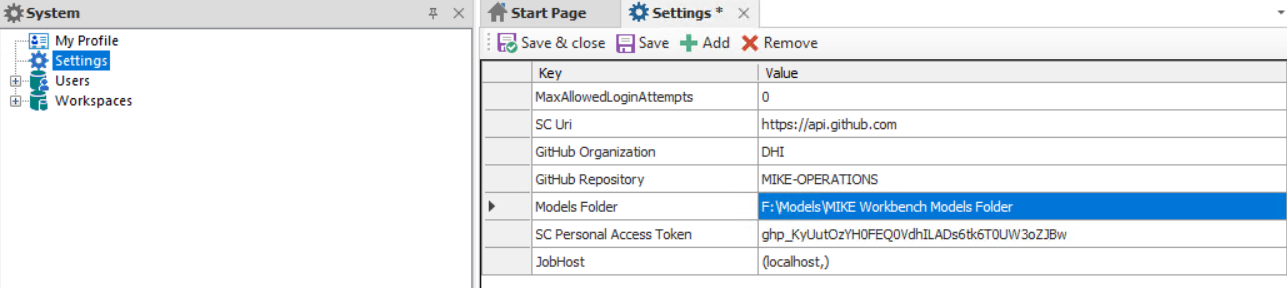
When working with 2D marine models, initial conditions and results files can be big and can negatively impact the time to import and export them from/to the database. It is recommended to store them on a disk.
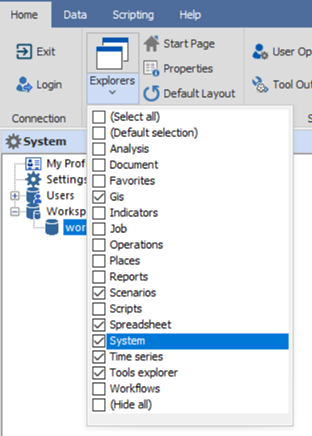
This is configured by setting the Models Folder property in the Settings. When registering any model in MIKE Workbench, the user will have to option to use this folder to store those file.
HD model registration
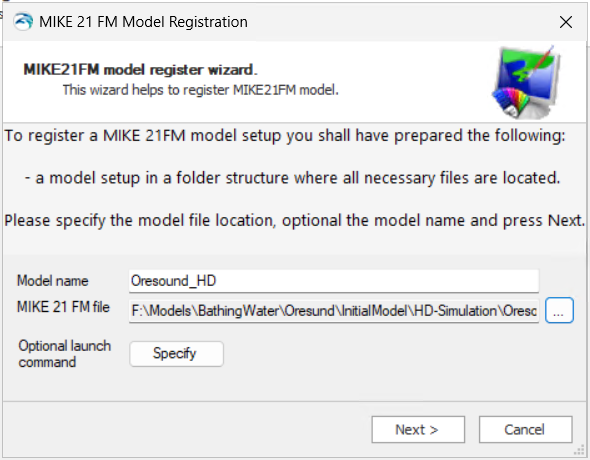
This will read the model configuration and recognised a wide variety of inputs files and parameters (that will be accessible in the user interface) and will save a zip version of the model in the database. After registration, the model can be deleted from the disk
This is done by following the different steps in the registration wizard. It is generally recommended to keep the default properties and let MIKE Workbench discover and import the different model files:
- Open the registration wizzard
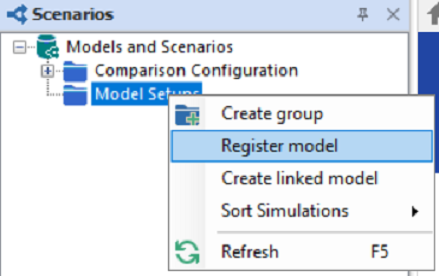 - Select MIKE21FM to register any type of FM model
 - Follow the workflow
HD Scenario configuration
A scenario is used to define what parameters (e.g. simulation start and end dates) and input files (e.g. boundary conditions) will be changed when a simulation is executed. A scenario does not contain any data per se, it can just be seen as a mapping of different database objects and simulation files.
A generic rule, the following items should be included in a scenario: - All time varying input files - Only relevant output files - Decoupling output folder
A scenario will also define how to configure the following when a simulation starts: - Hotstarts - Simulation period
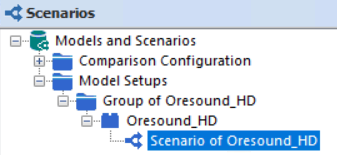
A default empty scenario was created with the model registration.
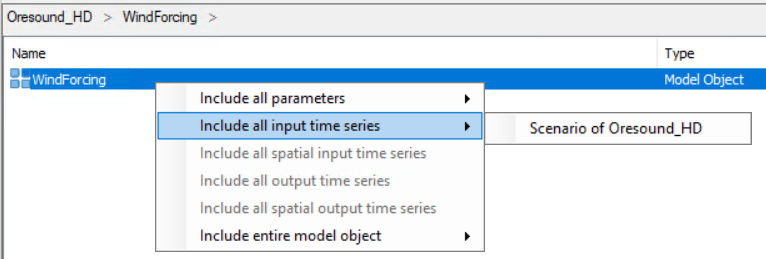
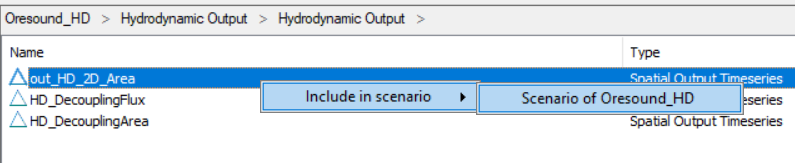
Open each input file and Include all inputs time series to the scenario.
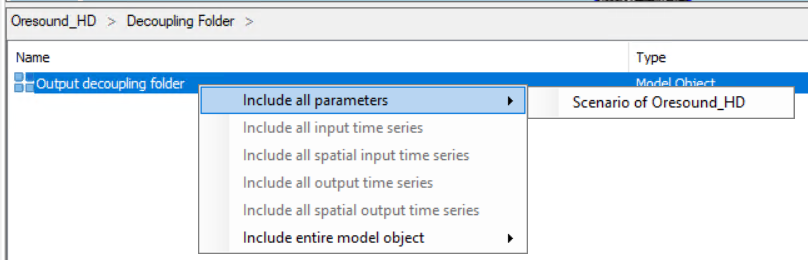
Include the Decoupling Folder parameter
Include relevant output time series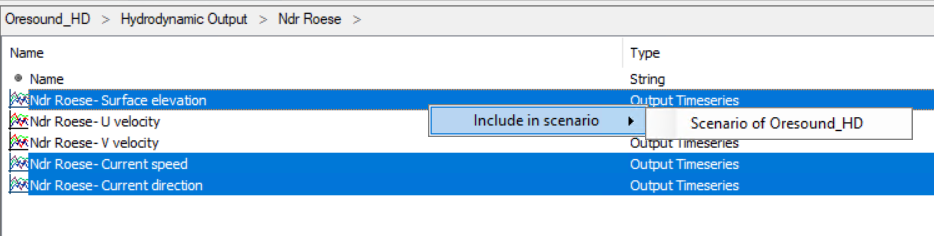
Include relevant 2D output items
Once done, the scenario should list all the files and parameters selected
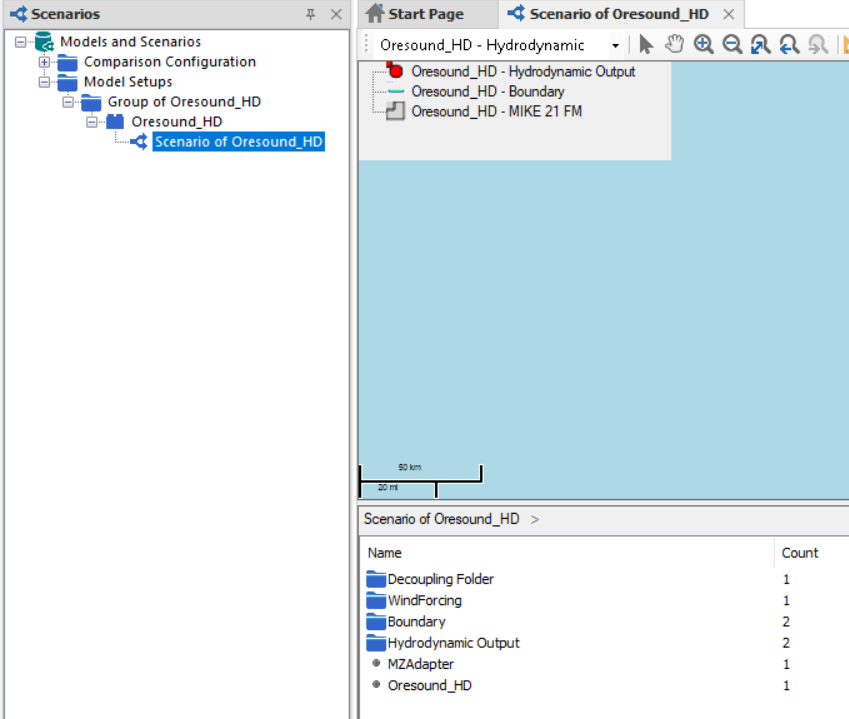
Set decoupling folder

Configure the hostart
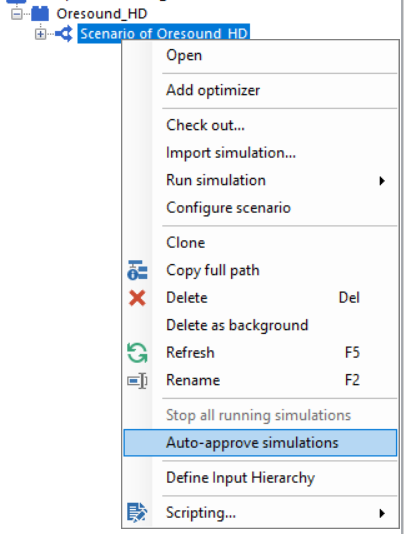
Auto approve
Prepare HD inputs
Then, the input time series should be copied in a new folder. This new time series will be the ones updated before running your simulation.
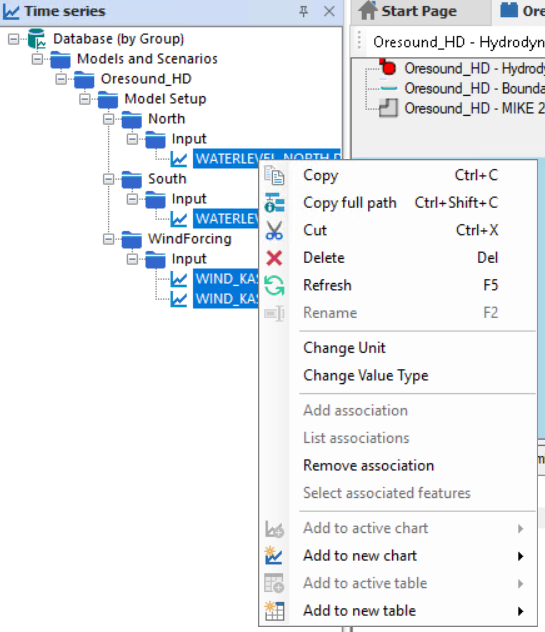
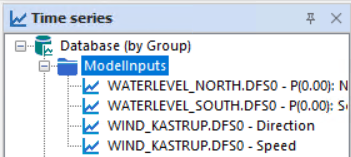
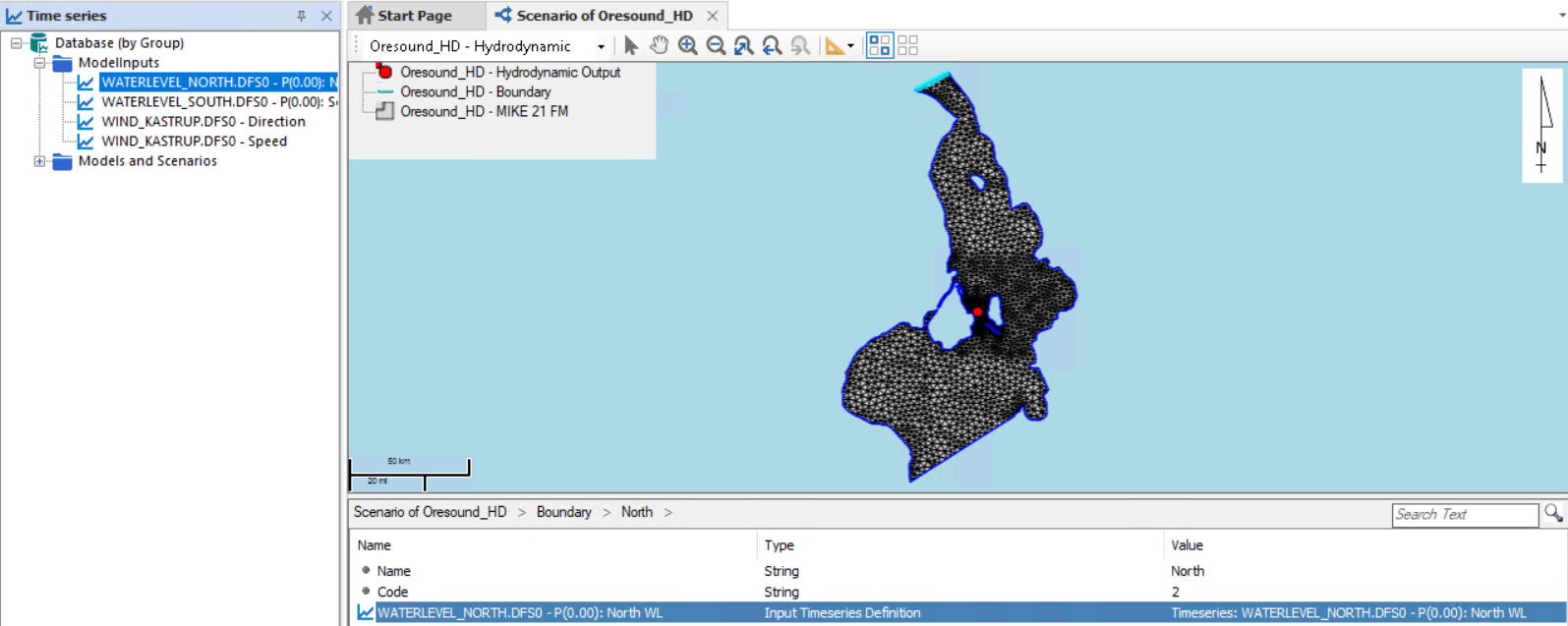
Then, you should drag and drop the time series to their corresponding scenario object. This will tell MIKE Workbench which time series to export where when running a simulation.
Verify HD model run
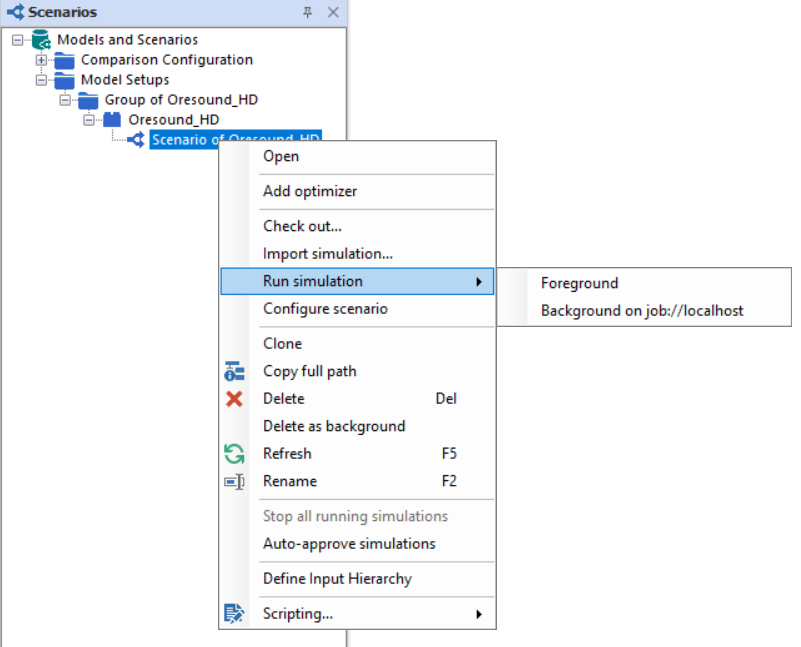
Run your scenario and a new simulation will be created.
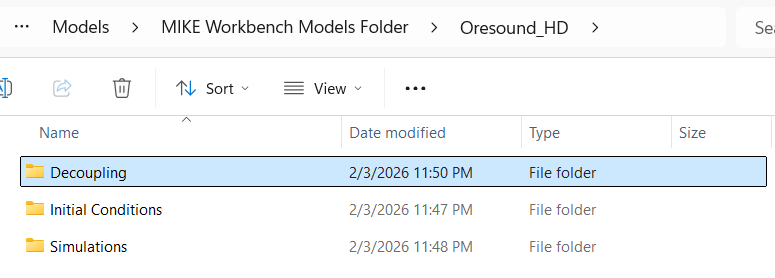
Make sure the decoupling and hotstart files are properly created.
Register your Particle tracking model
Follow step 2 and 3 to register your PT model and configure your scenario. Make sure to set the decoupling folder to be the same as the HD.