How to...
This section will answer the most common questions related to working with Jobs in MIKE Workbench.
How can I execute a job from command line?
Once a Job has been created and a schedule exists, it can be excecuted in command line.
The Job Manager Runner (DHI.Solutions.JobManager.JobRunner.exe) is located in the bin folder and can be used in command-line.
The table below describes the different parameters that can be used.
| Parameter | Description |
|---|---|
| -c or --connection | Indicating the connection arguments for running the job. Those arguments are semi-column delimited: - applicationname: should set to JobRunner- database: the name of the database to connect to - host: the name of the machine on wich the Job Service is running (generally localhost)- port: the port on which the PostgreSQL dabase is running (generally 5432) - dbflavour: PostgreSQL or Microsoft SQL Server- serverpostfix: used for azure server. It indicates whether the server name should be used as postfix when creating an Azure connection. |
| -w or --workspace | Indicating the workspace on which the job file will run |
| -u or --user | Indicating the user name to be used for running the job. This is the same account used to log into the database with MIKE OPERATIONS. |
| -p or --password | Indicating password to be used for running the job. |
| -h or --hash | Indicating whether the password is hashed. If set to yes, it uses a decrypt method utility to parse the password. |
| -t or --target | Indicating target with in the job file that will be executed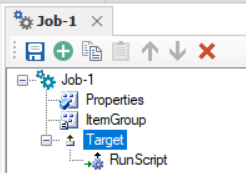 |
| -j or --job | Indicating the job file path |
| -a or --attribute | Indicating the custorm attributes which can be used in the job file. There can be multiple attribute arguments |
| -v or --validate | Indicating whether the job file shall be validated. Validating a job is to check whether the job content conforms to the msbuild project schema. |
| -n or --noconsole | Indicating whether the console is to be shown while running the job or not |
Most of this information can be found in C:\ProgramData\DHI\JobSchedules.xml
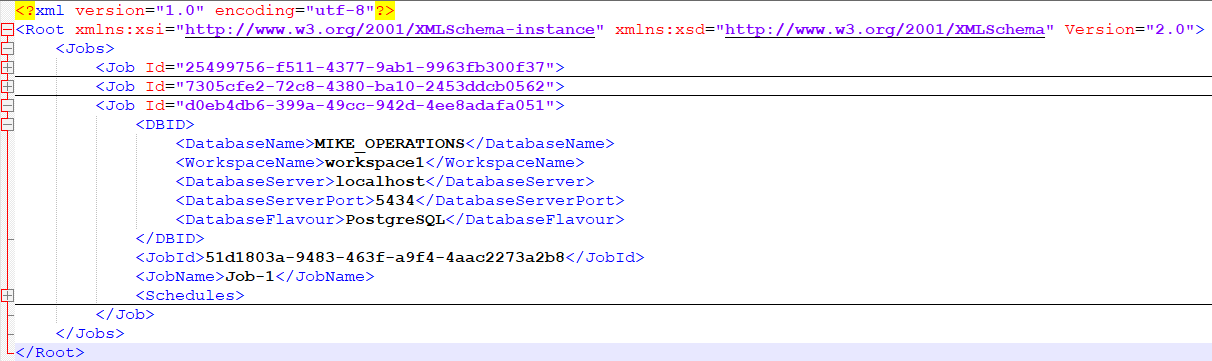
For example, this can be used for MIKE OPERATIONS 2025:
"C:\Program Files (x86)\DHI\MIKE OPERATIONS\2025\bin\DHI.Solutions.JobManager.JobRunner.exe" -c "applicationname=JobRunner;database=MIKE_OPERATIONS;host=localhost;port=5432;dbflavour=PostgreSQL;serverpostfix=False" -u "username" -p "password" -w "workspace1" -j "dss://a65b7dca2800448c916c0c84003f6ec6;RunScenario" -t "Target"