Configure job service as remote job service host
To allow MIKE OPERATIONS client installations to schedule and run jobs on a remote host, the job service of the remote host should be configured with a unique host name and the corresponding port should be open.
1. Set host name
This is done in the DHI.Solutions.JobManager.Config file found in the MIKE OPERATIONS installation folder of the remote server/host, e.g.:
C:\Program Files (x86)\DHI\MIKE OPERATIONS\2025\bin\DHI.Solutions.JobManager.Config
Change the ServiceHost attribute from localhost to the name of the server.
<?xml version="1.0" encoding="utf-8" ?>
<configuration>
  <appSettings>
    <add key="GenerateJobLogFile" value="false" />
    <add key="RuntimeConfig" value="" />
    <add key="ServicePort" value="8089" />
    <add key="ServiceHost" value="<server name>" />
    <add key="ServiceUseSSL" value="false" />
    <!-- ... -->
  </appSettings>
</configuration>
For more information about this config file, refer to the Job settings documentation.
2. Restart the job service
To apply the changes, restart the job manager service from either the Windows Service app or from the Windows Task Manager.
Both applications can be found in the Windows Startmenu.
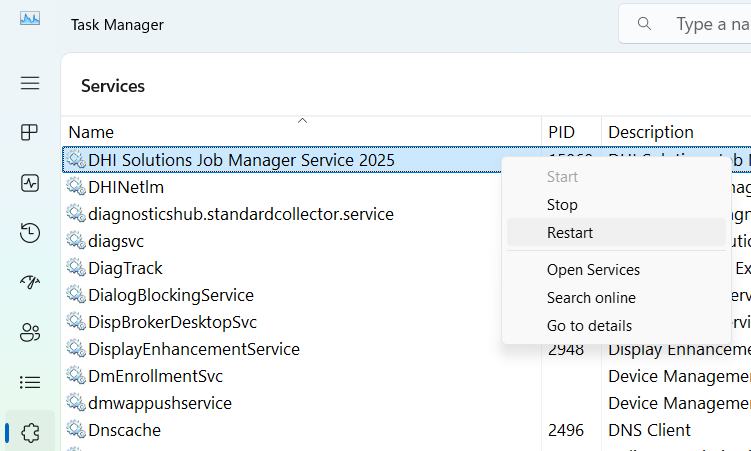
3. Open port
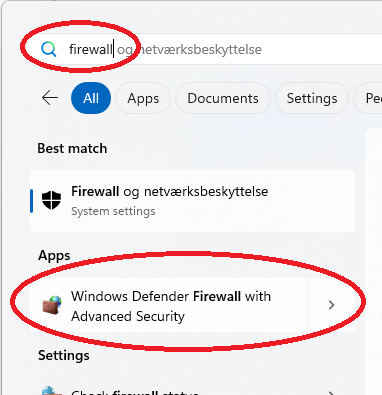
Open the firewall settings:
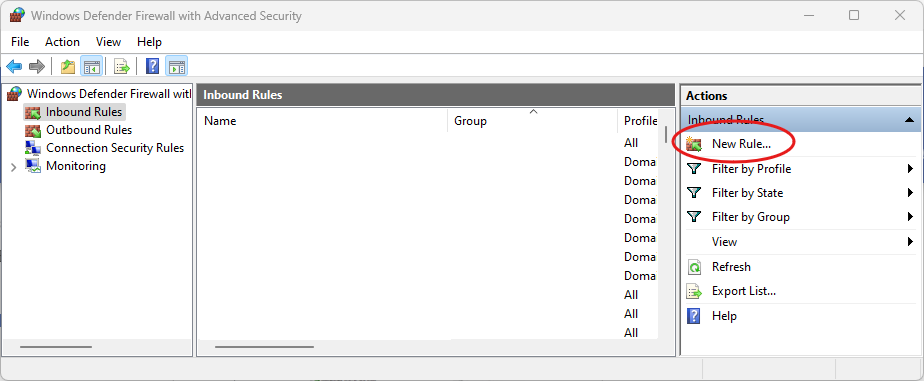
Select Inbound Rules and Click New Rule in the Actions panel to the right
Select Port
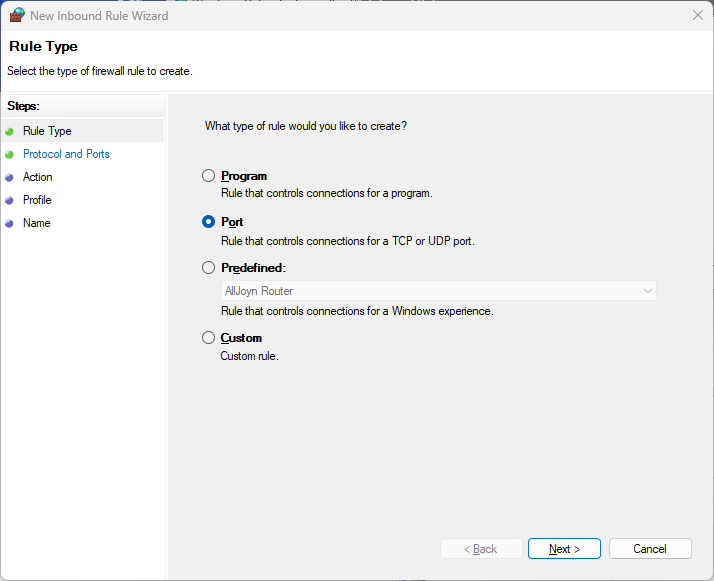
Click Next
Select TCP and Specific local ports and enter 5432 (or the port number specified when installing PostgreSQL)
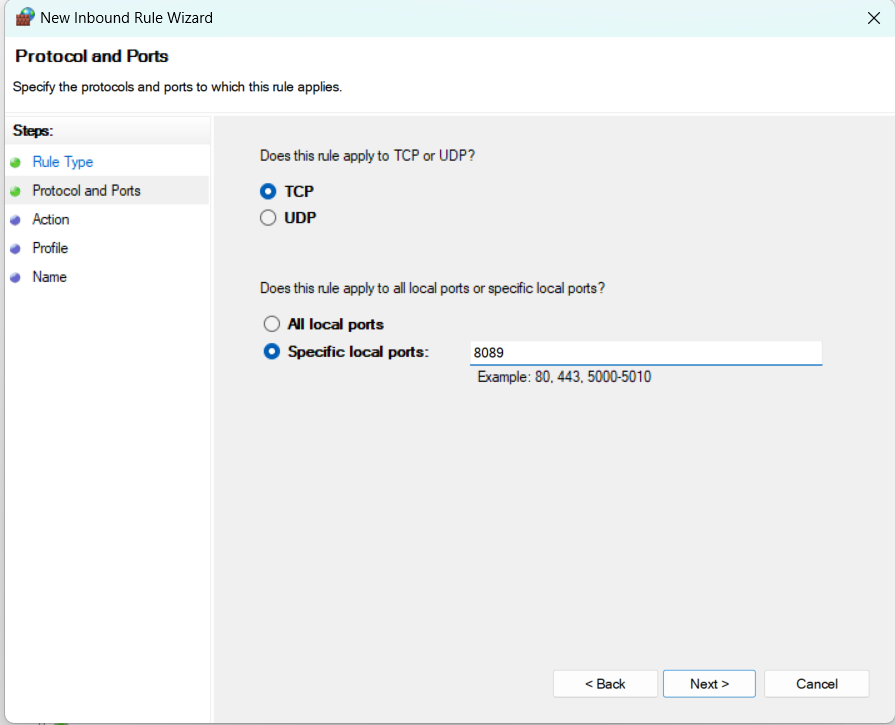
Click Next
Select Allow the connection.
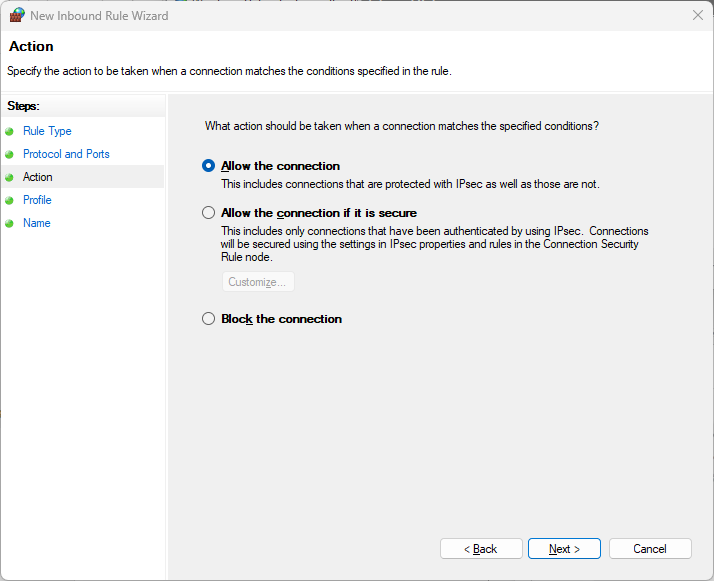
Click Next
Select all profiles.
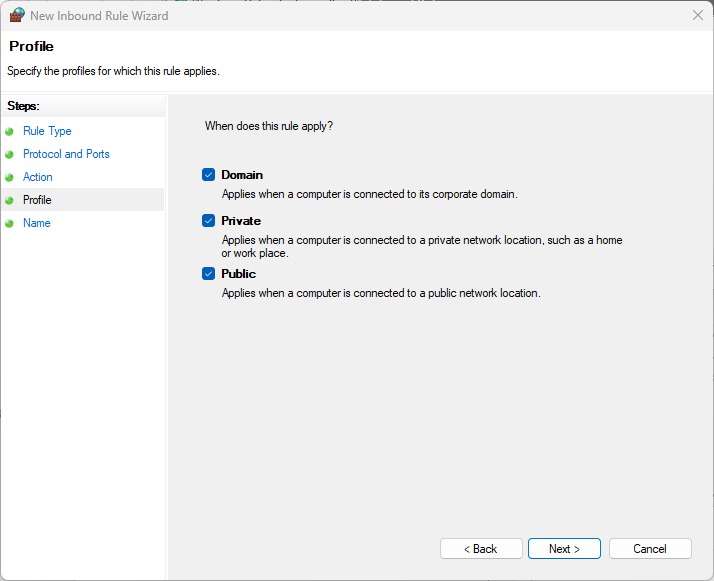
Click Next
Specify a rule name – e.g. PostgreSQL (5432) – and a description.
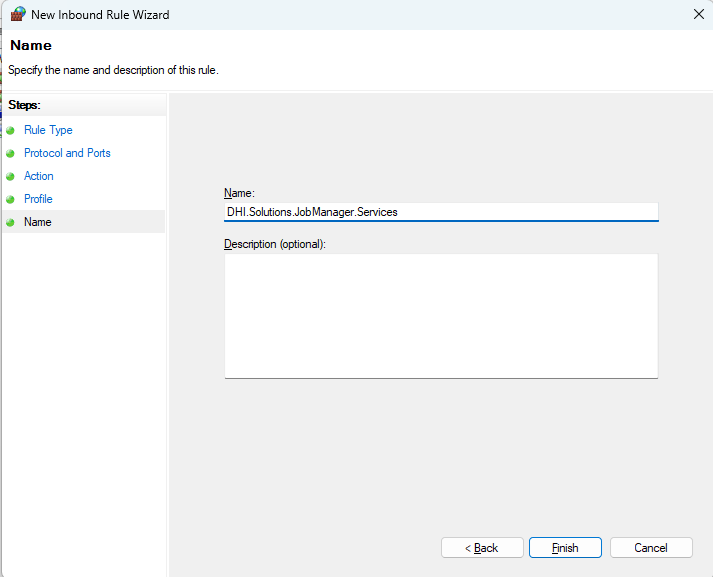
Click Finish
The new rule is now added to the list of Inbound rules.