Deployment of WEB APIs and Virtual Machines in Azure
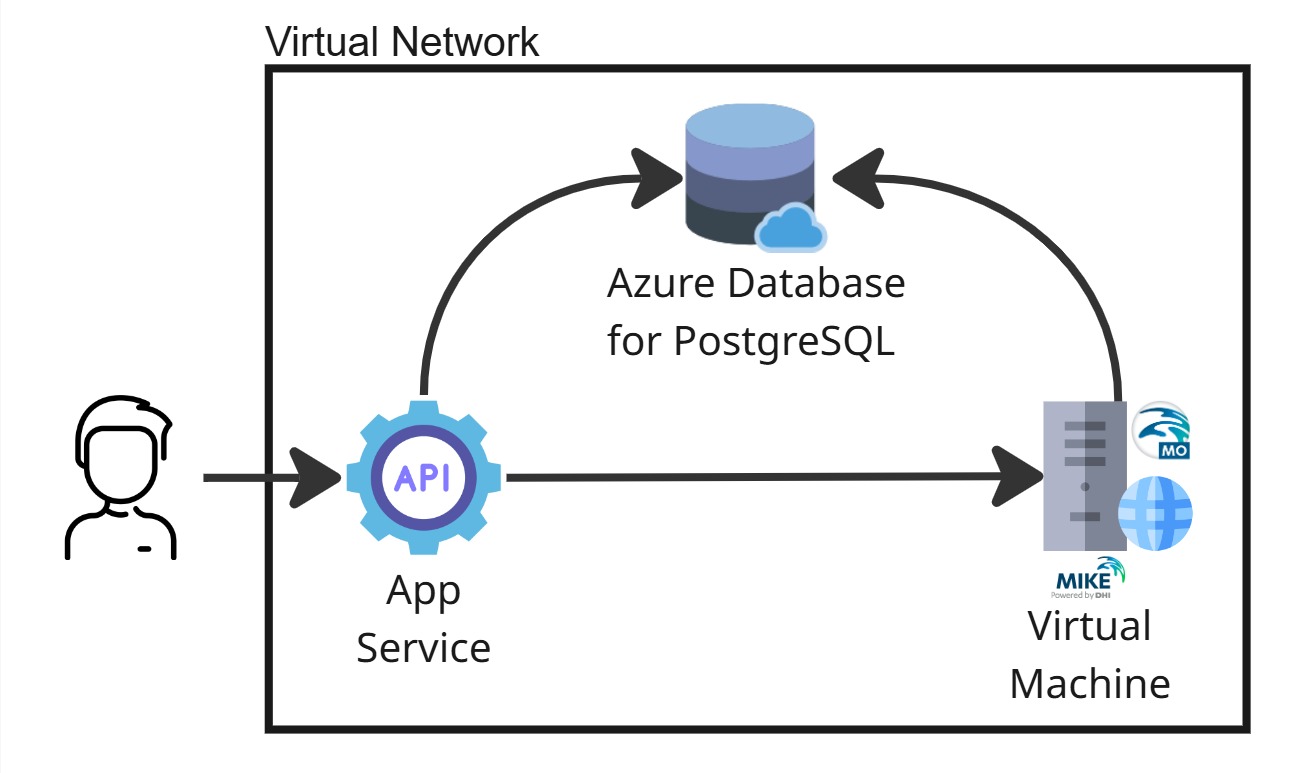
In this chapter, we will see how to configure a virtual network on Azure with a WebApp service hosting the Web APIs and one virtual machine for running models with MIKE OPERATIONS. The picture below shows the architecture. Unlike the deployment options in the chatper Azure Database PostgreSQL, this architecture does not allow access to the database from outside the network.
You will need an Azure subscription with a Contributor role.
1. Create a Virtual Network
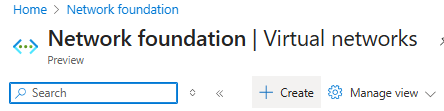
In Azure, create a new Virtual network.
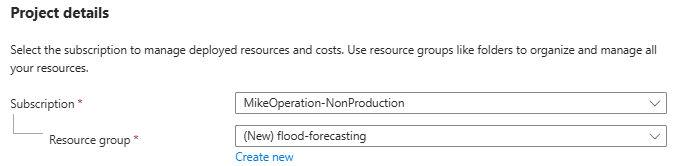
Select the subscription that will carry the cost and define a Resource group that will hold all required resources.
Name your virtual network and define the region where is will be hosted.

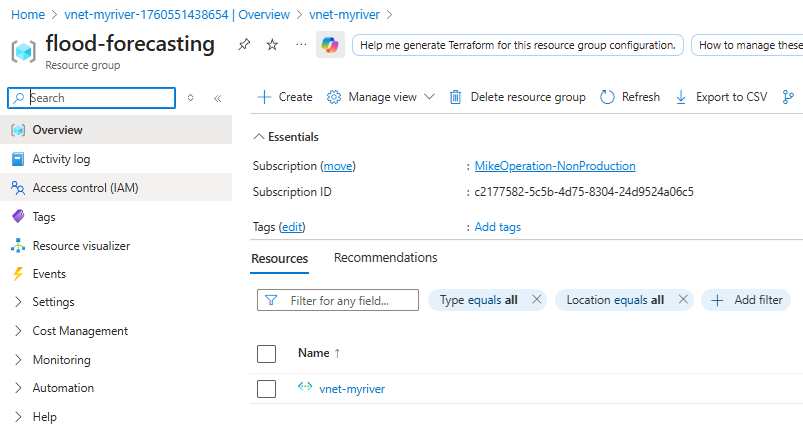
Follow the different steps by clicking Next and finish with Create. A Virtual network is now visible in your Resouce group.
2. Create a Network security group
In Azure, create a new Network security group.
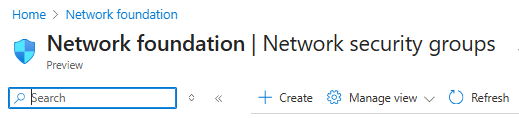
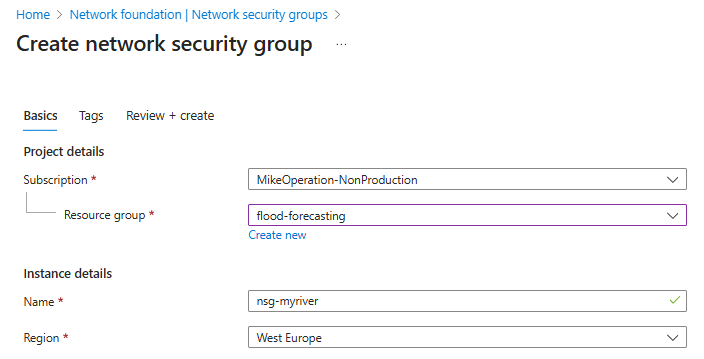
Select the same resouce group, the same region and give it a name.
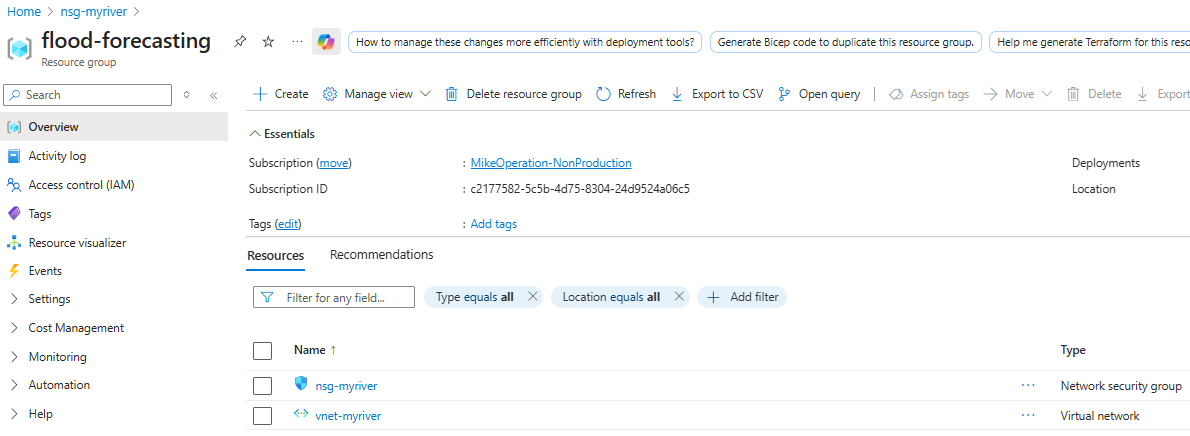
Click Review + Create, then Create and a new Network security group is created in your resource group.
3. Add a subnet for the PostgreSQL databse
We will create a sub network to handle the PostgreSQL Server.
Click on your your virtual network, navigate to the Subnets page and click on + Subnet.
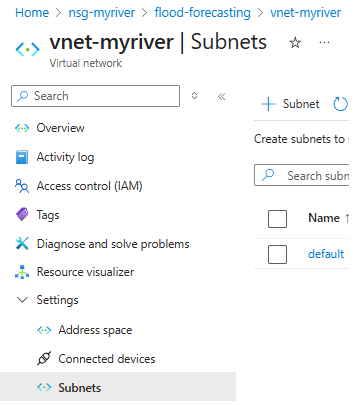
Give it a name.
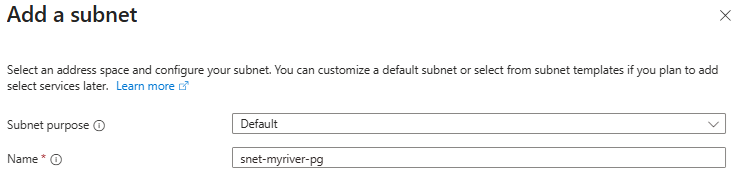
Set the Sise to /28 (16 addresses).

Select the Network security group.
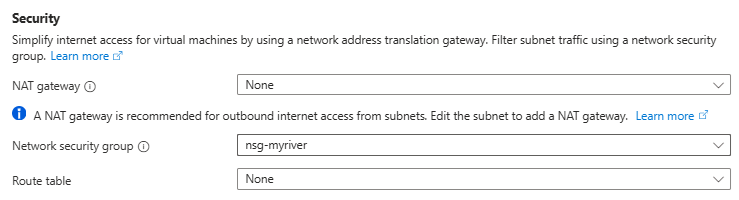
Set the Delegate subnet to a service to Microsoft.DBforPostgreSQL/flexibleServers and click Add.

The subnet now shows in the list.

4. Add a subnet for the Virtual Machine and the WebApp Service
Create a new sub network for the virtual machine that will be used as run machine, on which MIKE OPERATIONS and the modelling software will be installed.

Set the Sise to /28 (16 addresses).
Add Security group, like we did in Step 3. Keep everything else as default and create. The subnet now shows in the list.

5. Create Application Security Group
Create an Application security group.
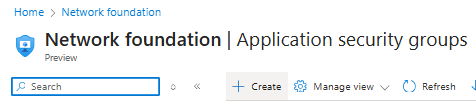
Select the resource group, give it a name and click Review + createand then Create.
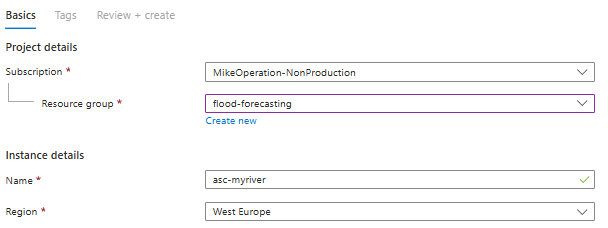
6. Create and configure the virtual machine
This machine will be the run machine on which the models will run and MIKE OPERATIONS will be installed.
Create the virtual machine
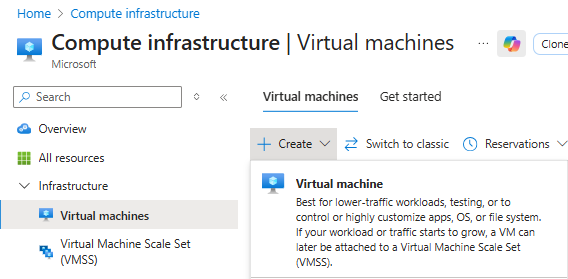
In Azure, go to Virtual Machine and click create.
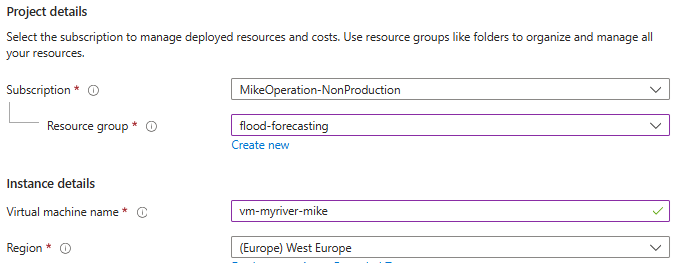
Basic tab
Select the Resource group, the region and give the machine a name (max 15 characters). Keep this machine name for the Job Configuration.
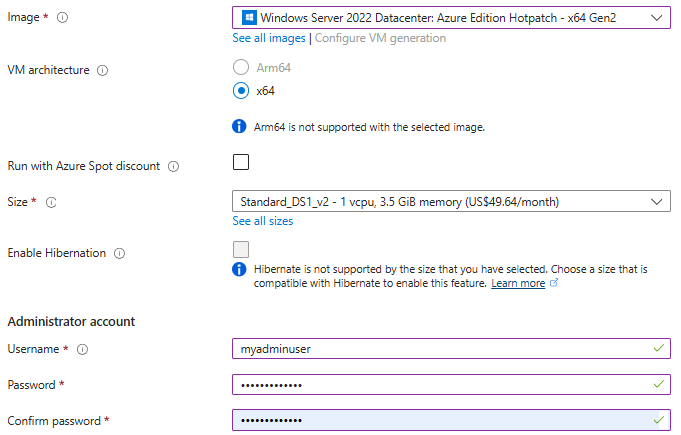
Select a Supported Image (see release notes) and define the user name and password.
Set the Public inbound ports to None.

Networking tab
In the Networking tab, select the Subnet that was created for the machine in step 4. Keep NIC Network Security Group to None.
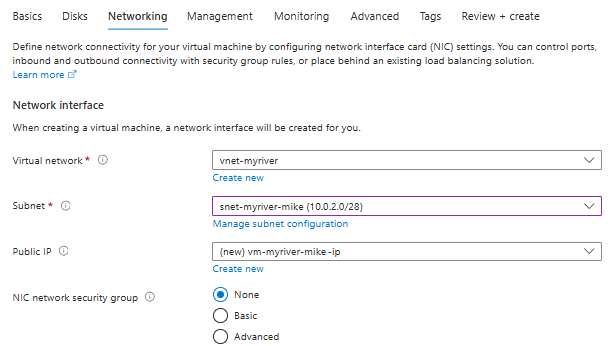
Click click Review + createand then Create.
You should have the following resources in your resource group.
Add Remote Desktop Inbound port rules
Remote Desktop
Once the machine is created, go to the resource and open Network settings.
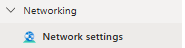
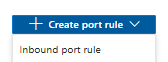
Click on + Create port rule and select Inbound port rule.
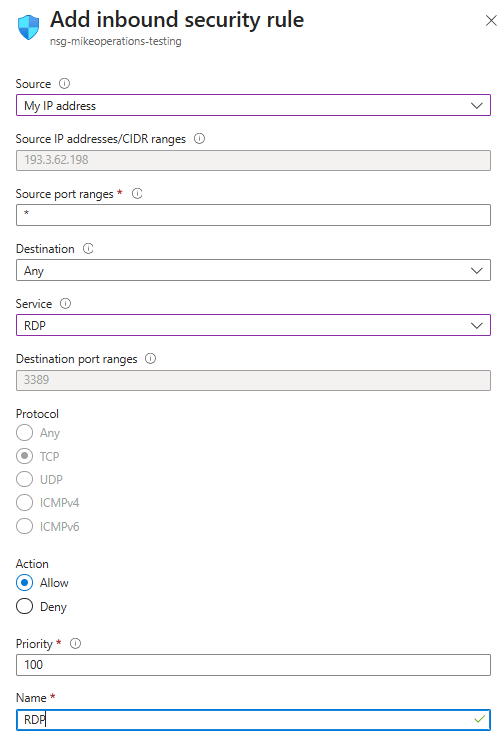
Set up a RDP inbound rule with your IP.
Job Service
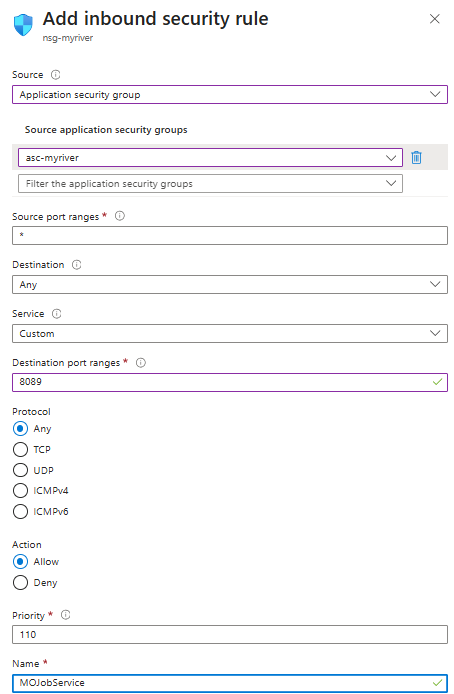
Add an additional inbound rule for the Web API (located in the Application security group) to access the MIKE OPERATIONS Job Services (using port 8089).
Set up an Application security group rule, using the Application security group created in step 5 and targeting port 8089.
Install MIKE OPERATIONS
Log into the virtual machine, install MIKE OPERATIONS following the Installation guide and configure the DHI License Manager using your Internet license credentials.
Note
Even though we use an Azure PostgreSQL service, we should install PostgreSQL on the Virtual Machine because the PgTools are required.
Configure Job
For the Run machine to be able run job triggered from the Web APIs, the host name must be set and the ports opened, following the guidelines
7. Create a database server
To create and configure an Azure Database for PostgreSQL, following the steps in this chapter, making sure to follow Case 2.
Write down for step 8:
- database server name (e.g. "psql-mybeach.postgres.database.azure.com")
- database name (e.g. "mike_operations")
- Port (e.g., "5432")
- database password associated with
posgresuser (e.g., "mypassword")
8. Create an Azure App Service (WebAPIs)
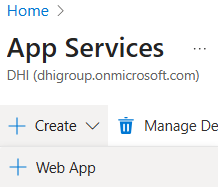
The WebAPIs will be hosted in an Azure App service. Select Web App in the Create menu. No database is required.
Basic tab
In the Basic tab, select the resource group, select the correct region and give a name to the instance.
Container tab
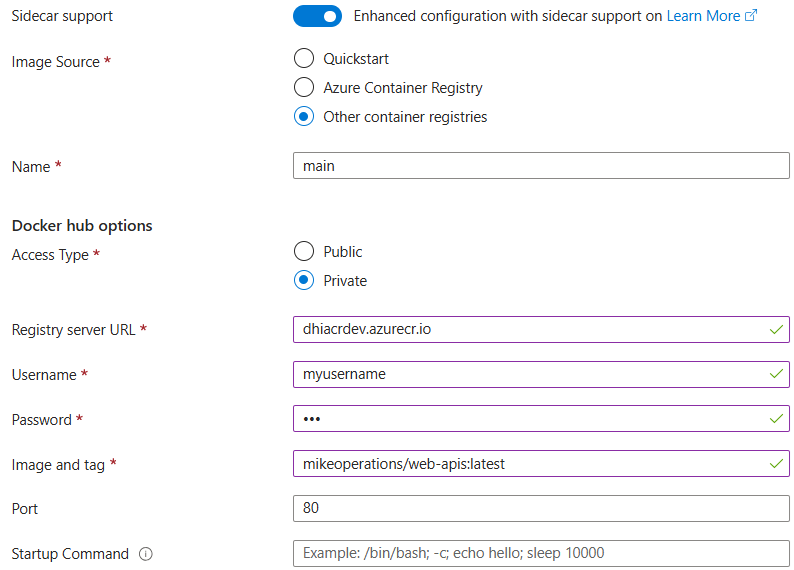
The App Service will be created based on a Linux Container. Skip over the Database tab and define the container as Other container registries. Select Private. Make sure to select Sidecar support.
Then provide the following information
- Registry server URL: dhiacrdev.azurecr.io
- Username: (provided by DHI)
- Password: (provided by DHI)
- Image and tag: mikeoperations/web-apis:latest
- Port: 80
Networking tab
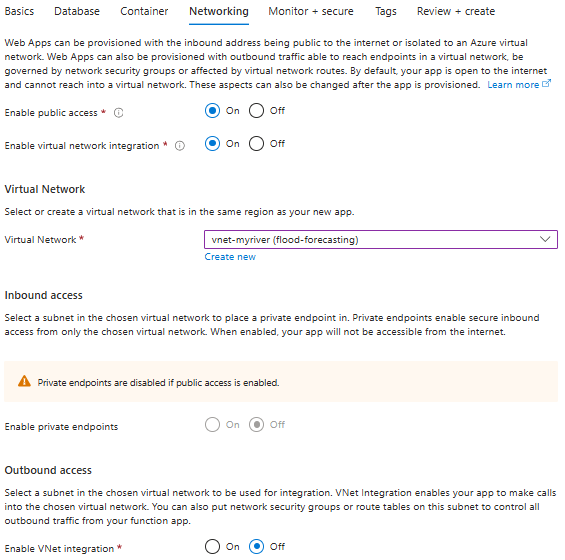
In Networking tab, set Enable public access to 'On' for the WebAPIs to be accessible to anyone. If the APIs will only be called by a known set of devices, the property should be set to 'Off' and private end points should be configured.
We need the App Service to communicate with the PostgreSQL database and Virtual Machine on the virtual network, so Enable virtual network integration should be set to 'On'. The Virtual Network should be selected and the Enable VNet integration set to 'off'.
Then create the WebApp
Add environment variables
Once the WebApp is created, environment variables should be added.
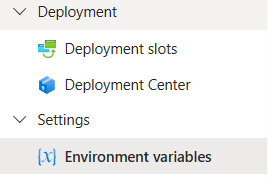
KEY_VAULT_NAME
Create an environment variable called KEY_VAULT_NAME to store the name of the key vault.
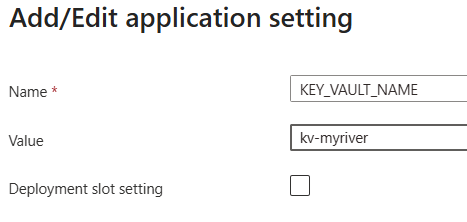
SECRET_NAME
Create an environment variable called SECRET_NAME to store the value ConnectionSrings in the key vault. This will be used to retrieve the database connection string from the KeyVault.
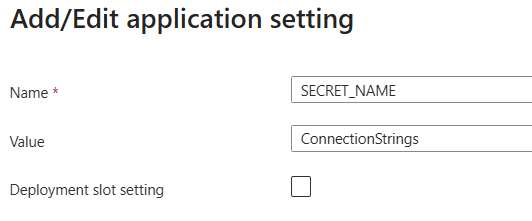
Configure Identity
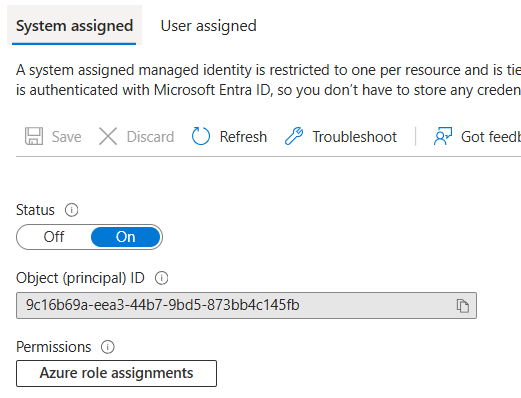
Go to the Identity tab
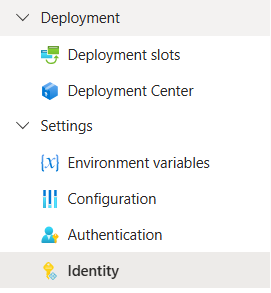
Switch on the System assigned
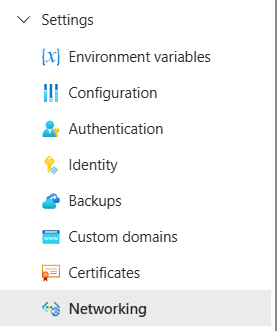
Networking
Go to the Networking tab
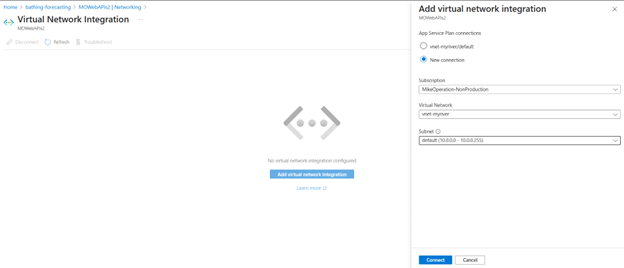
Select Outbound traffic Configuration

and add the virtual network you created and select the default Subnet.
9. Create Azure Key Vault
Create a new Key Vault
Basics tab
Select the resource group, the region and give it a name.
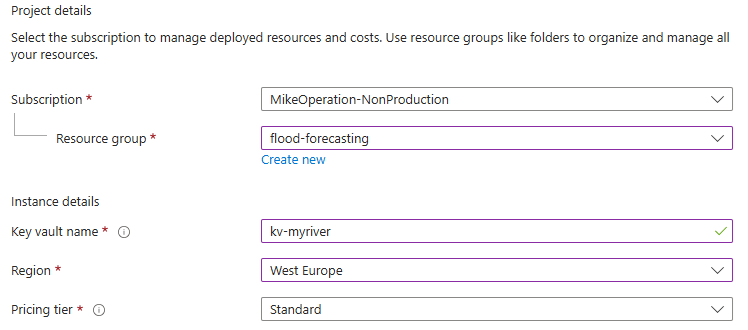
Access configuration tab
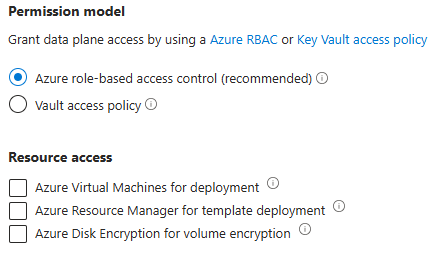
Networking tab
Pick the option Selected networks
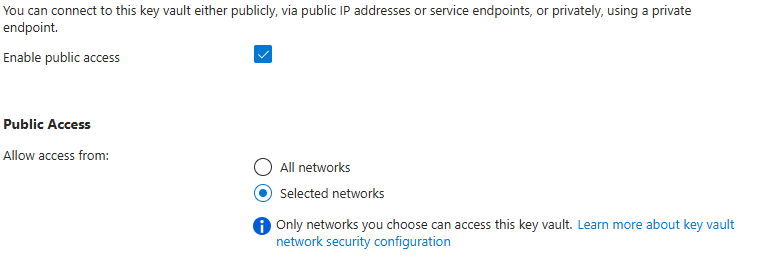
Click on Add a Virtual Network and Add an existing virtual network.

In the Add networks pannel, select your virtual network and add the subnet that you picked when creating your WebApp.
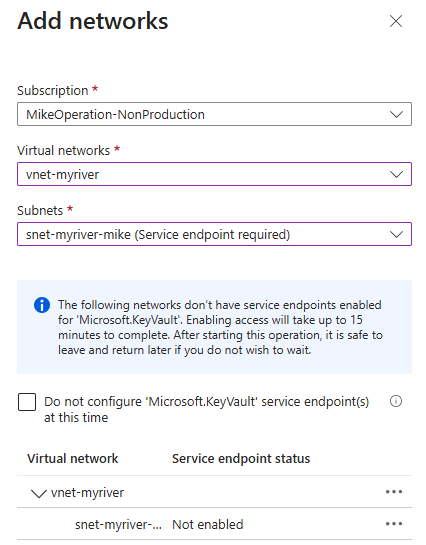
Then click Review + create and Create.
Add Key Vault Administrator
Once the Key Vault is created, fo to Access Control (IAM) and yourself as a Key Vault Administrator.
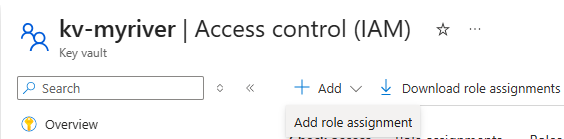
Add Networking rule
In the Networking tab, add a Firewall rule with your own IP adress.

Secrets tab
Go to Secrets
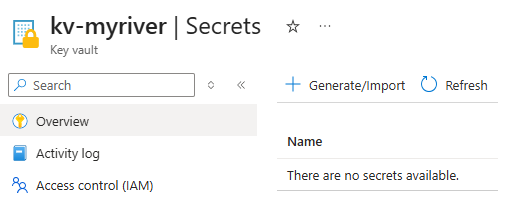
Create secret
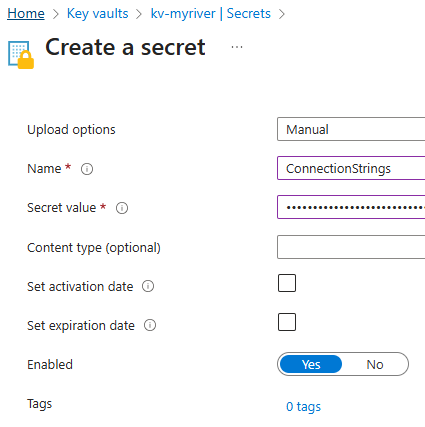
Click Generate/Import to create a new Secret.
Name the secret ConnectionStrings and set the value to be a connection string made of the database server name, the database name, the Port and password, e.g.
host=psql-myriver.postgres.database.azure.com;port=5432;database=mike_operations;dbFlavour=PostgreSQL;workspace=workspace1;username=postgres;password=mypassword;Ssl Mode=Require
Access control
Click Access control (IAM) to give access to the secret to the WebAppcreate a new Secret.
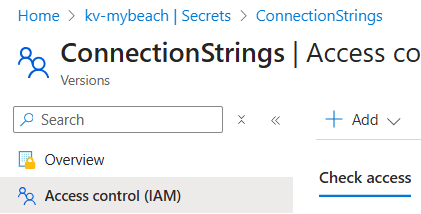
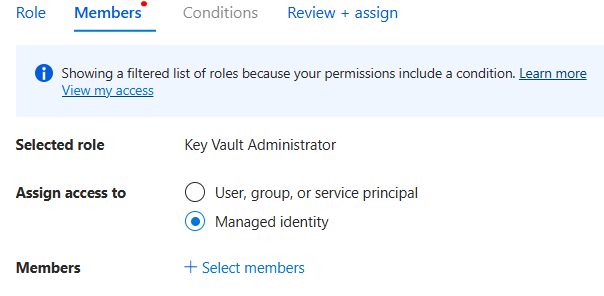
Click Add and select the role **Key Vault Administrator.

In Members, select Managed Identity
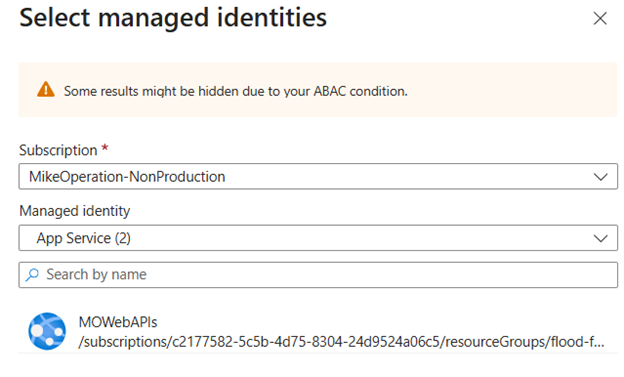
Select the App Service created in the previous step.
10. Test WebAPIs
Set up health check
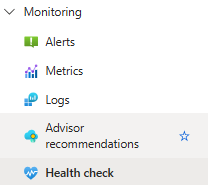
Go to Health Check
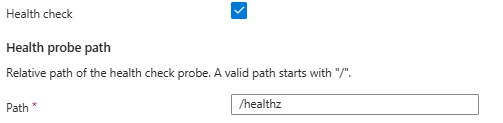
Set the Path to /healthz
If there is a problem with your WebApp deployment, a warning will be shown at the top.

Is this is the case, look at deployment log under