Configure an Azure Database for PostgreSQL
MIKE OPERATIONS supports using Azure Database for PostgreSQL.
Azure Database for PostgreSQL is a relational database service provided by Microsoft Azure, based on the open-source Postgres database engine. It's a fully managed database-as-a-service offering that can handle mission-critical workloads with predictable performance, security, high availability, and dynamic scalability.
When using Azure Database for PostgreSQL, configuration of the service as well as bandwidth between the Azure PostgreSQL service and the MIKE OPERATIONS installation has a high impact on performance of the installation.
Many Best Practices has been written on the topic installing Azure database services and can be found in e.g. on the Microsoft web site. This guide is just a simple getting started for MIKE OPERATIONS users with limited knowledge of Azure.
This article will describe two deployment options: - Case 1: the database should be accessed from outside Azure (e.g. by on premise computers) - Case 2: the database should be accessed from within an Azure Resource Group
1. Decide on the PostgreSQL version to use
By default, users shoud try to use the latest version of PostgreSQL fulfilling their requirements.
First, check the Release Notes to see what versions of PostgreSQL are supported.
Then, depending on the modules you plan on using, make sure the required extension are available by reading the Azure documentation.
| Module / Feature | Extension required |
|---|---|
| GIS Manager | POSTGIS POSTGIS_RASTER POSTGIS_SFCGAL POSTGIS_TIGER_GEOCODER POSTGIS_TOPOLOGY |
| MIKE OPERATIONS Web - Longitudinal Profile | PGROUTING |
Mesh Database
The Mesh Database (i.e. unstructure 2D data stored in PostgreSQL database) is not supported as Azure does not allow non superusers to use code in C and MIKE OPERATIONS comes with its own PostGIS extension.
2. Create an Azure Database for PostgreSQL
Creating an Azure Database for PostgreSQL, requires an Azure subscription.
The region should be in the same region as the machines on which MIKE OPERATIONS is installed:
- Case 1: Check Azure's data center locations and pick the closest one .
- Case 2: Both the Azure Virtual Machine and the PostgreSQL Database should be on in the same data center for incresed performance
Create a new Azure Database for PostgreSQL server
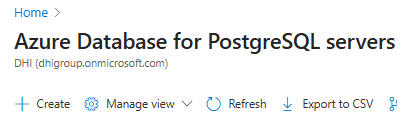
Basics tab
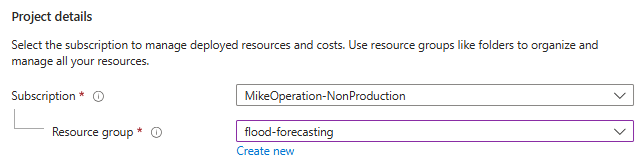
Select your Resouce group.
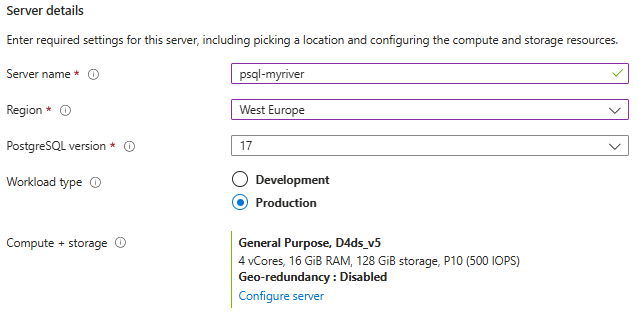
Give it a name, select the select region and version, and pick Production.
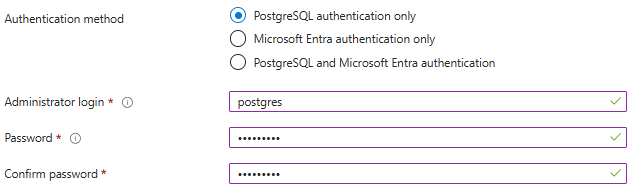
Select PostgreSQL Authentification only, and create a database administrator. This user name should be postgres. Select a password that you will remember for future use.
Networking tab
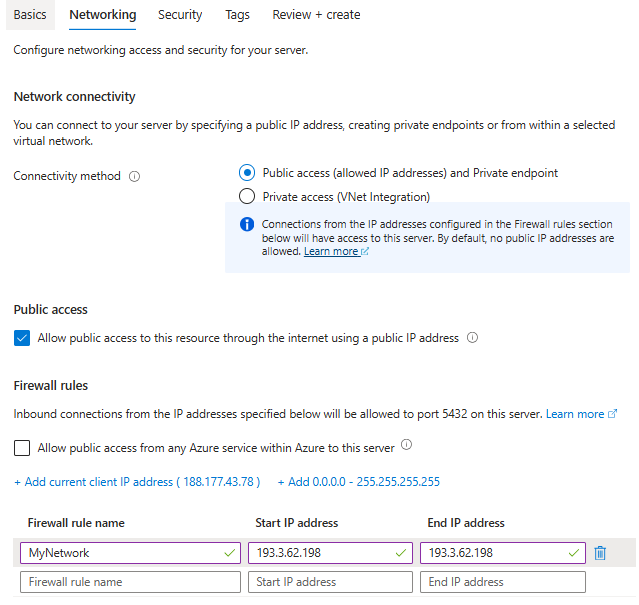
Case 1: Configure an IP based firewall rules
Select Public access and Private endpoint, tick Allow public access and add the IPs of the hardware that will use the database.
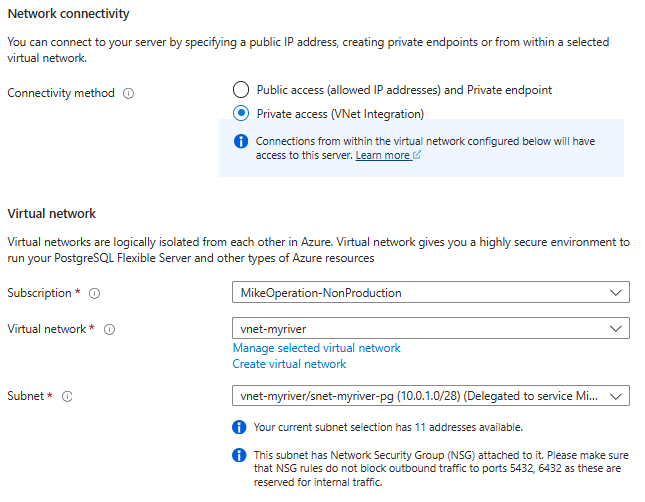
Case 2: Configure a Vnet firewall rule
Select Private access (VNet integration) and make sure to select the corresponding Vnet and Subnets.
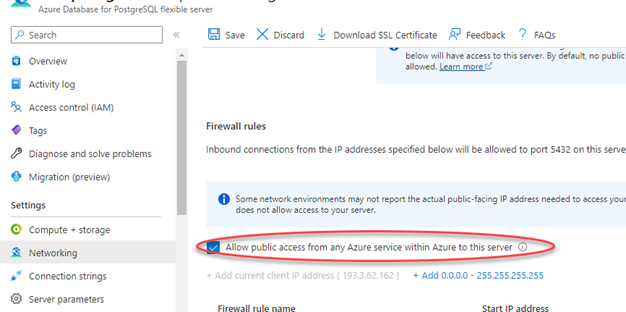
Optional: Configure MIKE Cloud access
Allow access to Azure Services or configure a Virtual Network for database access in case the MIKE Cloud Job Service Provider is used for running MIKE OPERATIONS jobs on Azure using containers.
4. Enable extensions
Extensions must be enabled for MIKE OPERATIONS database schema to work properly
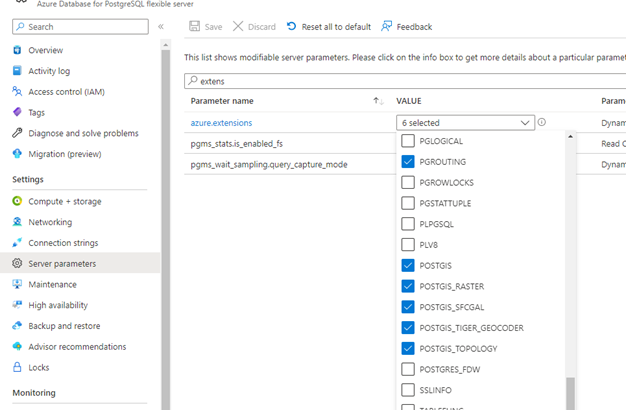
PostGIS
Select server extension PGROUTING and extensions for POSTGIS by selecting the five POSTGIS extensions, setting on the server parameter azure_extensions.
GDAL
Enable all GDAL drivers for POSTGIS by setting the postgis.gdal_enabled_drivers to ENABLE_ALL.
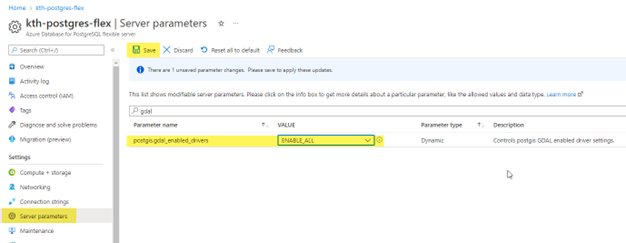
Click Save to save the parameter settings.
5. Create a new database
Get Azure Database service connection
Find the Server name, User Id and Port in the database Connect tab on the Azure Portal.

Connect Database Management Utility
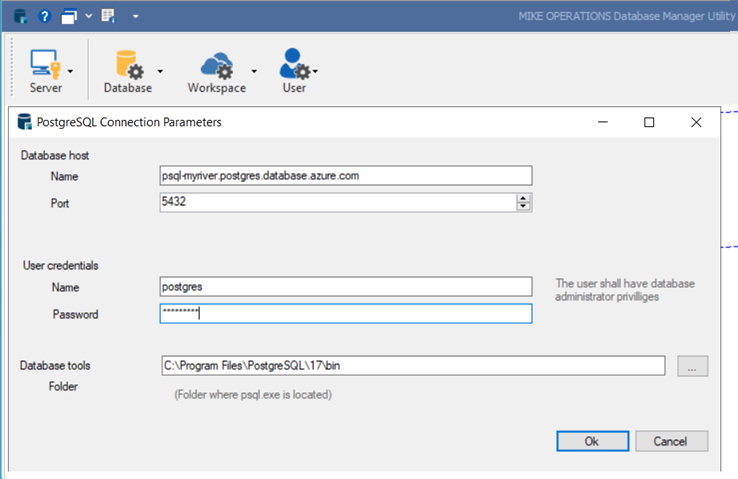
In the machine on which MIKE OPERATIONS is installed, open the Database Manager Utility and connect to the database server.
Notes
Make sure that the Database tools Folder on the client matches the version of PostgreSQL service on Azure.
Create a database
Create a new database on the server.
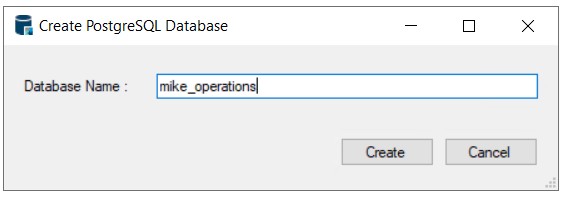
Use the connection information of the Azure database server in the Database Manager Utility or when making a new connection setup in MIKE OPERATIONS.